Oh how I’ve joked. Every year for nearly the last 20 or so years, the joke was “This is the year of Linux on the Desktop!” Of course, I knew better. In my every day life, Linux just wasn’t ready. It wasn’t that I didn’t want to try it out fully (I’ve tried Red Hat, Gentoo, Mint, Ubuntu, and even Kali at one point), it’s just that there were too many applications and games that were Windows-only or hardware driver problems. This always prevented me from taking “Linux on the Desktop” seriously – it was always on extra hardware, never given my full attention. However, I think 2026 may finally be the year that, for me, I move to Linux at home.
I’ll tackle the ‘why’ later (but spoiler, it has something to do with AI and ads) – for now I want to focus a bit on the ‘how’.
I have three personal computers at home – a custom Desktop PC (about 4 years old), an old gaming laptop which acts as a Discord/Slack terminal (about 6-7 years old, and has that many years’ worth of pictures I need to backup), and a new gaming laptop (2 months old). My goal for this year is to attempt to get all three running Linux (I do wonder about the new laptop with its nVidia GPU…).
I’m about a week into the adventure, having started with my desktop PC – it’s a part-time gaming machine and full-time finance manager station. I track all my personal finances using offline software – Quicken. And it’s this software, being Windows-only, which has been one of the “must haves” in order for me to fully commit to Linux. But overall, it’s not a complicated machine. I don’t use Adobe anything (though I should do some image editing and spruce up these posts), I’m not a podcaster or vlogger (I’ve got a face made for radio), and I’m not playing whatever AAA studio game was released this week (what are we on, Call of Duty 85?). I’m a simple person.
About six months ago, I’d set up the desktop PC to dual-boot both Windows 11 and Linux Mint 22. My goal then was to try to get Quicken working in Mint – through wine or bottles. But no — nothing I tried worked with either of those products. I then tried looking at open source alternatives, and see if I could export my 6+ years’ worth of data out of Quicken and into something like KMyMoney. This was also a fail. And then…Windows ate my GRUB loader. I think.
At some point in December, an update of some sort broke my dual boot situation, and I wasn’t able to boot into Linux at all – it would just go straight to Windows. Crossing the threshold into 2026 I decided to just nuke the desktop. I’d had enough of all the things…
Installing Linux has never really been an issue – many of the main distro’s I’ve used have always been pretty easy to install. It’s even easier if you want to wipe all your drives and do a clean install. I again went with Linux Mint for it’s clean and simple look.
So far, about a week into this experiment with some light daily use, I’m feeling fairly comfortable. Here are some of the applications I’ve been using this week (in no particular order):
-
 The first application I searched for was a OneNote alternative. I like taking notes and saving screenshots. There were a few web-based options, but I just want simple. I want to feel in control. Obsidian does exactly what I need. I’m still not fully organized with it, but I have used it this week to track my experiences so far: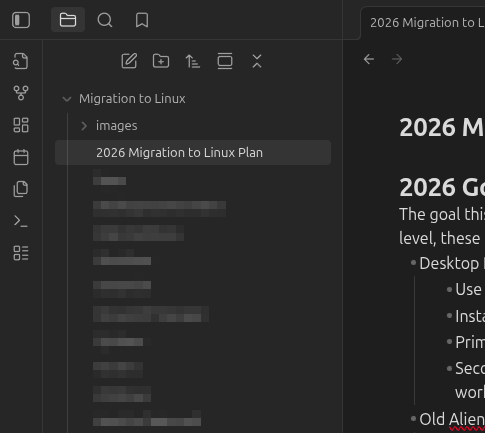
So far, I’m happy with it. It doesn’t consume a lot of resources when running, is quick and responsive to use, and doesn’t feel bloated at all.  Firefox is…well….fine. But Mozilla appears to be drinking from the AI Kool-Aid fountain, and I’m not interested. See their recent blog post titled Introducing AI, the Firefox way: A look at what we’re working on and how you can help shape it. I’m going to save my thoughts on AI for another time…
 For storing and saving all my passwords. I was pleased to see this was included natively in the Software Manager. It installed easily, I was able to restore-from-backup my vault. Very simple.
 Mint came pre-installed with Thunderbird Mail, and I have to say….it’s great! Like many of the applications in this list, it does exactly what I want it to do and doesn’t bog down my system resources.
 Here’s where the fun began. I decided the only way I was going to get Quicken to work was to run it inside a Windows VM. I’d tinkered with VirtualBox before, and after some time I got a Windows 10 VM installed. The trick with the Windows 10 installation, was to run the installer with the virtual network adapter disconnected. Windows will detect no internet connection, and will allow you to skip setting up the Microsoft Account. During this setup, I did use the Brave Search/AI to assist in properly setting the
 kvmandkvm_amdmodules to not load during startup. Yes, it needed the terminal. No, I’m not afraid of the terminal. Most of the games I play today are in Steam, and Valve has spent a tremendous amount of time and effort developing their Proton software to get many games that were developed for Windows to work in Linux. The Steam Deck (of which I do not have) is powered by Linux and Proton. So installing this was really easy. I even found a few very easy tutorials online for installing the Battle.Net client into Steam, thus allowing World of Warcraft to be installed.
 I found this little utility after doing some research on a screenshot utility. When I write documentation, I love to take screenshots. I also love to draw, highlight, or annotate on screenshots and this little utility does all of that. It’s already far superior to the native Windows screen snip utility that I use religiously. With a bit of research, I even managed to rebind the print-screen key on my keyboard to the ‘Take a screen shot’ function. This is maybe my favorite utility so far.
Summary / Closing
I’ve never been afraid to try Linux, though as I get older I’m finding that my level of patience for dealing with things that should “just work” is lowering. I’m still very much in the early honeymoon phase of this, but so far I’ve been extremely surprised at just how much of this is “just working”. This desktop PC went from having roughly 35% of it’s memory consumed by Windows just by idling, to now hovering around 12%. Every application in my list above has done exactly what I needed without problem. I’ve had zero hardware or driver problems thus far, and while not the perfect scenario, the fact that I can still get access to Quicken and my data was a pretty big deal.
I plan to keep testing though. I need to test a few games, get a better data backup solution in place, and spend a little time tinkering.
If you’re still reading this and are even curious about trying it out, I’d encourage you to do it! It feels a little bit liberating while sparking the excitement of my early days where everything felt new, fresh, and dare I say….fun?
One thought on “The Year of Linux on the Desktop (finally?)”